


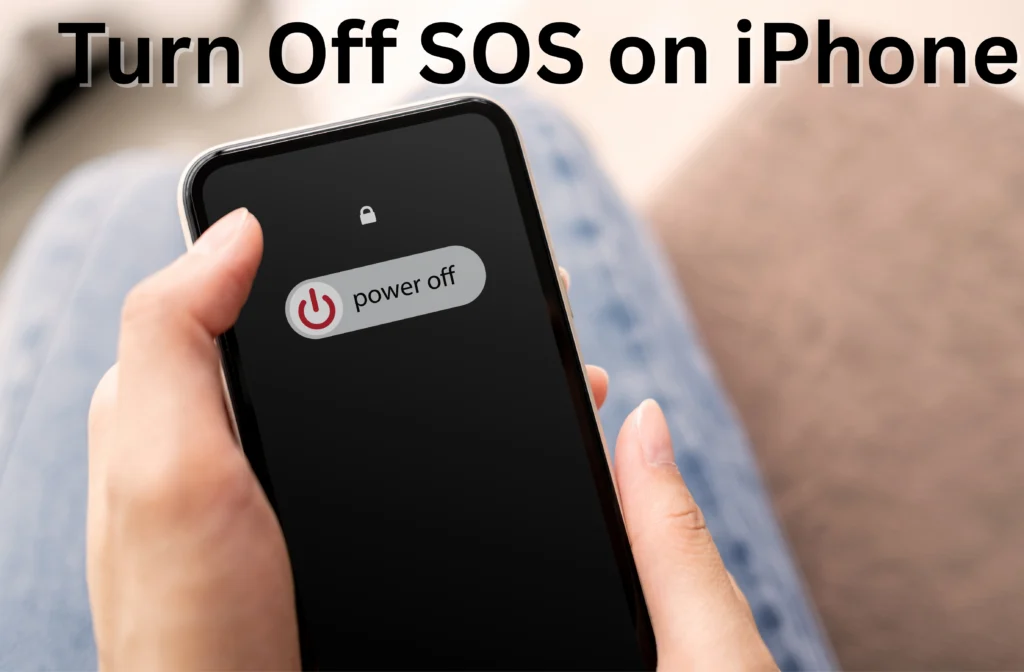
Displaying SOS Only on your iPhone, or enabling Emergency SOS automatically, is confusing and frustrating. This problem affects many users, and they think that something has gone wrong with their device. As a matter of fact, the SOS feature is a safety feature that can occasionally be activated accidentally. In this article, you will learn how to disable SOS on iPhone, its reasons and how to avoid it in future.
Understanding SOS Mode on iPhone Future
SOS feature on iPhone is to assist the users with calling emergency services quickly. When it goes off, it enables you to make immediate calls to the 911 or local emergency numbers. But occasionally you might see SOS Only in the status bar and that typically indicates that your iPhone cannot access your carrier’s regular network but it can still make emergency calls.
This may happen when you are in a location with a weak signal, you have a period of network coverage failure, or when your carrier SIM is malfunctioning. It is good to know about this feature so that when it happens you do not panic. The feature is essential in emergency times but can be disabled or changed in case it goes off excessively.
How to Disable Emergency SOS Settings and Guide ?
You can change or turn off the Emergency SOS settings on your iPhone to prevent accidental activation of SOS. In Settings Apple offers a couple of options that regulate the functionality of this feature.
- Step 1: Go to the Settings application on your iPhone.
- Step 2: Tap Emergency SOS and scroll down.
- Step 3: You will get a call with Hold or Call with 5 Button Presses.
- Step 4: Use the toggles to the right of these options to disable the automatic activation of SOS.
- Step 5: You also have the option to turn off Countdown Sound that prevents loud alarms when SOS is activated.
Turning these features off will make sure your iPhone does not call emergency services by accident when you press the side button more than once, or leave it held down for too long.
Fixing “SOS Only” Network Issue on IPhone
When the status bar on your iPhone displays SOS Only, that does not necessarily indicate SOS was activated. Rather it is that your iPhone cannot reach the regular network of the carrier. Here are solutions to fix it:
- Check Coverage: relocate to a better network coverage area.
- Reboot iPhone: In some cases, a restart can solve short-term network snarls.
- Switch on and off Airplane Mode: Swipe into Control Center, and turn on Airplane Mode (10 seconds), and then turn it off.
- Reinsert SIM Card: Take out and insert SIM card to renew the connection.
- Make sure it is updated to the latest carrier settings: Settings > General > About. Install an update as soon as there is one.
- Restart Network: In Settings, select General, then Reset and Reset Network Settings (this option will not delete any personal data, it will delete network settings only).
You can use these techniques to eliminate the SOS Only issue and have normal services again.
Preventing Accidental SOS Triggers iPhone
In case you frequently press SOS accidentally, you can do the following to prevent it:
- Wear a Protective Case: Your side buttons can be accidentally pressed very easily; a protective case can minimize accidental clicks.
- Adjust Button Sensitivity: Although you can not adjust button pressure, with the disablement of the Call with 5 Presses option, there are fewer opportunities to invoke it.
- Avoid Pocket Activation: Remember to avoid putting your iPhone in your pocket, particularly when exercising or in tight-fitting clothes.
- Software Updates: iOS always remains updated, as Apple continually enhances the work of SOS.
- Carrier Support: In case SOS is triggered because of poor signal, contact your carrier to see how much coverage is available in your area.
These precautions will allow you to ensure that the feature is only activated when you really need it.
When You Should Keep SOS Enabled on IPhone
Some users would rather turn off SOS, but it should be noted that it is a life saving feature. Apple developed it as an emergency application in case of accidents, illnesses, or hazardous events. You may want to leave it on when:
- You usually walk alone or during the night.
- You are in weak signal areas where you can be caught in an emergency.
- You have health problems which might need immediate assistance.
- You need to have a feeling that your help is a button press away.
When you turn SOS off entirely, you need to have other safety nets, either by letting your loved ones know where you are or utilizing third-party emergency applications. The aim is to strike the right balance between convenience and personal safety.
Conclusion
It is not difficult to turn off SOS on the iPhone, unless you have no idea where to find the settings themselves and how to deal with the problem of SOS Only. You can also reclaim complete control over your device whether you disable the automatic shortcuts, fix network errors, or avoid accidental triggers. Nevertheless, do not forget that SOS is an important safety mechanism and it should be turned on in case you consider it important to have access to emergency in a short period of time.
FAQs
This is normally an indication that your iPhone does not have a regular carrier network connection, but is able to make emergency calls. It can occur as a result of bad signal, SIM card problems or intermittent carrier coverage.
You cannot delete it because it is inbuilt in iOS as a safety measure. You can, however, turn off the shortcuts (side button presses and hold features) so it will not start accidentally.
No, Emergency SSO shortcuts will not prevent you to make regular calls. It has no harmful effect in terms of avoiding the accidental activation of emergency services. Your iPhone will still serve all the other purposes normally.