


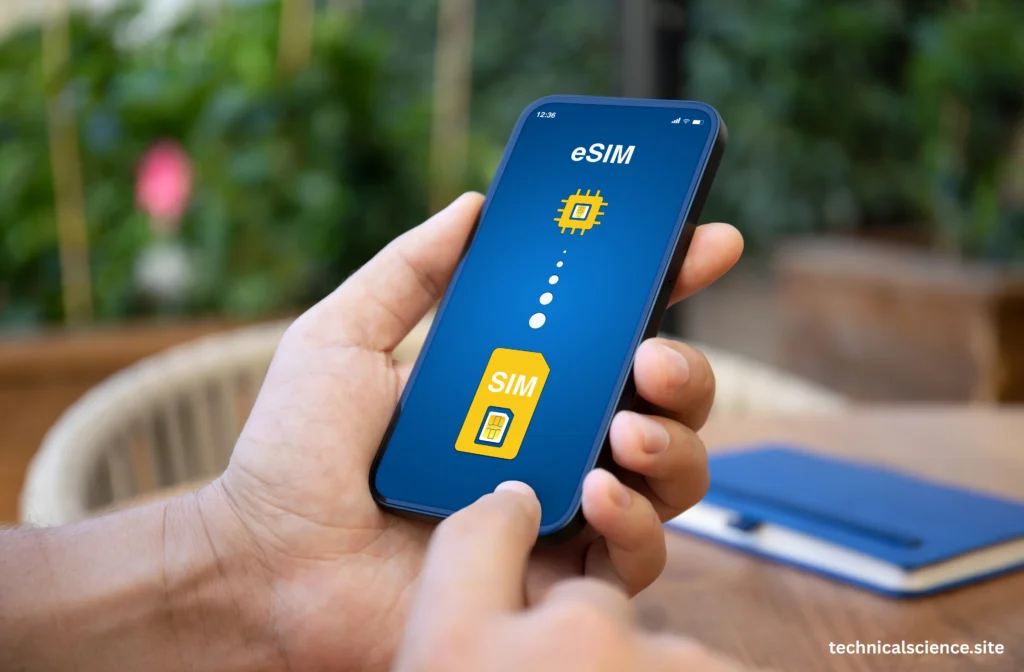
If you’ve just bought a new iPhone, you’ll likely want to move your mobile plan too. The good news is, you can easily transfer eSIM from one iPhone to another in just a few steps. This guide explains everything you need to know for a smooth and secure transfer.
What Is an eSIM and Why Transfer It?
Before learning how to transfer eSIM from one iPhone to another, let’s understand what an eSIM actually is. The term “eSIM” stands for embedded SIM, meaning it’s a digital version of the physical SIM card. Instead of inserting a small chip, your iPhone connects directly to your carrier network using software.
This technology eliminates the need for physical SIM trays and makes switching phones or carriers much easier. Apple introduced eSIM starting with the iPhone XS, XR, and newer models, and today it has become a standard feature across all modern iPhones.
When you buy a new iPhone, say, upgrading from iPhone 13 to iPhone 15 you don’t need to visit a carrier store. You can simply transfer eSIM from one iPhone to another using your device’s built-in settings. It’s faster, safer, and ensures your mobile number stays active throughout the process.
Another major benefit of eSIM is convenience. You can store multiple numbers or data plans on a single device, ideal for travelers or business users. So, if you’re setting up a new phone, transferring your eSIM ensures you retain your network connection, contacts, and plan details without any hassle.The contact in plan and details to hassle and retains the eSIM.
How to Transfer eSIM from One iPhone to Another During Setup?
When setting up a new iPhone, Apple gives you an easy and secure way to transfer eSIM from one iPhone to another. If both your old and new iPhones are running iOS 16 or later, the process is almost automatic.
Here’s how to do it:
- Turn on your new iPhone and place it near your old one.
- On your old iPhone, you’ll see a pop-up asking if you’d like to transfer data and your phone number to the new device.
- Select Continue on both devices.
- When prompted, follow the on-screen steps to confirm your carrier and mobile plan.
- Wait a few moments while your new iPhone activates the eSIM.
Once the activation completes, your new device will be connected to your carrier’s network, and your old iPhone’s eSIM will automatically deactivate. This ensures your number moves securely without duplication or service interruption.
Apple designed this method to make the transfer process simple. No QR codes or manual settings are required, and it works across major carriers worldwide.
However, it’s important to ensure both iPhones are connected to Wi-Fi during the transfer. This allows Apple and your carrier to verify the eSIM transfer request instantly. By following these steps, you can transfer eSIM from one iPhone to another in less than five minutes, even if you’re not tech-savvy.
How to Transfer eSIM Using iPhone Settings (Manual Method)?
If you’ve already set up your new iPhone and skipped eSIM transfer during setup, don’t worry you can still transfer eSIM from one iPhone to another manually through Settings. This method is especially useful if you’re switching later or need to move multiple lines.
Follow these steps:
- On your new iPhone, go to Settings Cellular (or Mobile Data).
- Tap Add eSIM or Set Up Cellular Service.
- You’ll see an option that says Transfer from Nearby iPhone select it.
- Make sure your old iPhone is nearby, unlocked, and connected to Wi-Fi.
- A message will appear on your old phone asking you to confirm the transfer. Tap Transfer or Continue.
- Wait while your carrier activates the eSIM on your new iPhone.
This process may take a few minutes. Once done, your new iPhone will show network bars, meaning the transfer is complete. The old phone’s eSIM becomes inactive automatically.
The advantage of this method is that it works directly within iOS without needing your carrier’s QR code. However, not all carriers support this automatic transfer feature. If you receive an error or “eSIM transfer unavailable” message, you’ll need to contact your carrier to get a QR code or activation link.
Whether using iOS 16, iOS 17, or iOS 18, the manual method remains the same. It’s fast, private, and secure. Apple ensures all data between your two iPhones is encrypted during the transfer, protecting your identity and number.
How to Transfer eSIM from One iPhone to Another Using a QR Code?
If your carrier doesn’t support automatic wireless transfer, the next best option is to use a QR code. This is a traditional but still secure way to transfer eSIM from one iPhone to another, especially when switching to a new carrier or restoring a plan.
Here’s how you can do it:
- Contact your mobile carrier and request an eSIM QR code for activation.
- Once you receive it (usually through email or text), open your new iPhone’s Settings.
- Go to Cellular Add eSIM Use QR Code.
- Scan the QR code provided by your carrier using the iPhone camera.
- Follow the on-screen instructions to complete activation.
After scanning, your new iPhone will automatically connect to the network. The carrier will deactivate the eSIM on your old iPhone once the new one is activated.
This method works across all supported iOS versions, including iOS 17, iOS 18, and upcoming versions like iOS 26. It’s ideal for users switching from one iPhone model to another when automatic transfer doesn’t work.
The QR code method is also great for international travelers who want to keep multiple plans on their device. You can store up to eight eSIMs on newer models like iPhone 15 Pro and easily switch between them without swapping physical SIMs.
In short, whether you prefer wireless or QR activation, both methods let you transfer eSIM from one iPhone to another securely and quickly.
Troubleshooting eSIM Transfer Issues
While most transfers go smoothly, sometimes users face issues when they transfer eSIM from one iPhone to another. Common problems include activation errors, network unavailability, or missing carrier options. Here’s how to fix them:
Ensure Both Devices Are Updated
Your iPhones must run the latest version of iOS. Go to Settings General Software Update to install any pending updates.
Restart Both Phones
A simple restart can often fix minor glitches that prevent the transfer.
Check Wi-Fi Connection
Both devices need a stable Wi-Fi network for Apple’s eSIM transfer process to work. Avoid using mobile data during the setup.
Verify Carrier Support
Not all carriers support eSIM transfer via iPhone settings. Contact your provider to confirm if they allow eSIM transfer from one iPhone to another directly, or if you’ll need a QR code.
Remove Old eSIMs if Needed
If you already have multiple eSIMs stored, delete any unused ones to make room for the new plan. Go to Settings Cellular Tap on the Plan Remove eSIM.
Contact Apple or Carrier Support
If you’ve tried everything and your eSIM still doesn’t activate, reach out to Apple Support or your mobile carrier’s help center for guidance. They can reset your plan remotely or issue a new eSIM.
By following these fixes, you can easily overcome issues and successfully transfer eSIM from one iPhone to another without losing service or data.
Conclusion
Switching phones doesn’t have to be stressful. With Apple’s built-in tools, you can transfer eSIM from one iPhone to another in minutes either wirelessly, manually, or using a QR code. Whether upgrading to iPhone 15 or setting up a new device, this process ensures a seamless, secure connection every time.
FAQs
Yes, most carriers support direct eSIM transfer through iPhone settings. Just go to Settings Cellular Add eSIM Transfer from Nearby iPhone to move your plan automatically.
Yes, both devices must be connected to a stable Wi-Fi network to complete the transfer successfully. Wi-Fi ensures a secure connection between your iPhones and carrier servers.
Once you transfer eSIM from one iPhone to another, your old iPhone’s eSIM is automatically deactivated. You can still use the device on Wi-Fi but won’t receive calls or texts unless you reactivate a new plan.
Read Also: