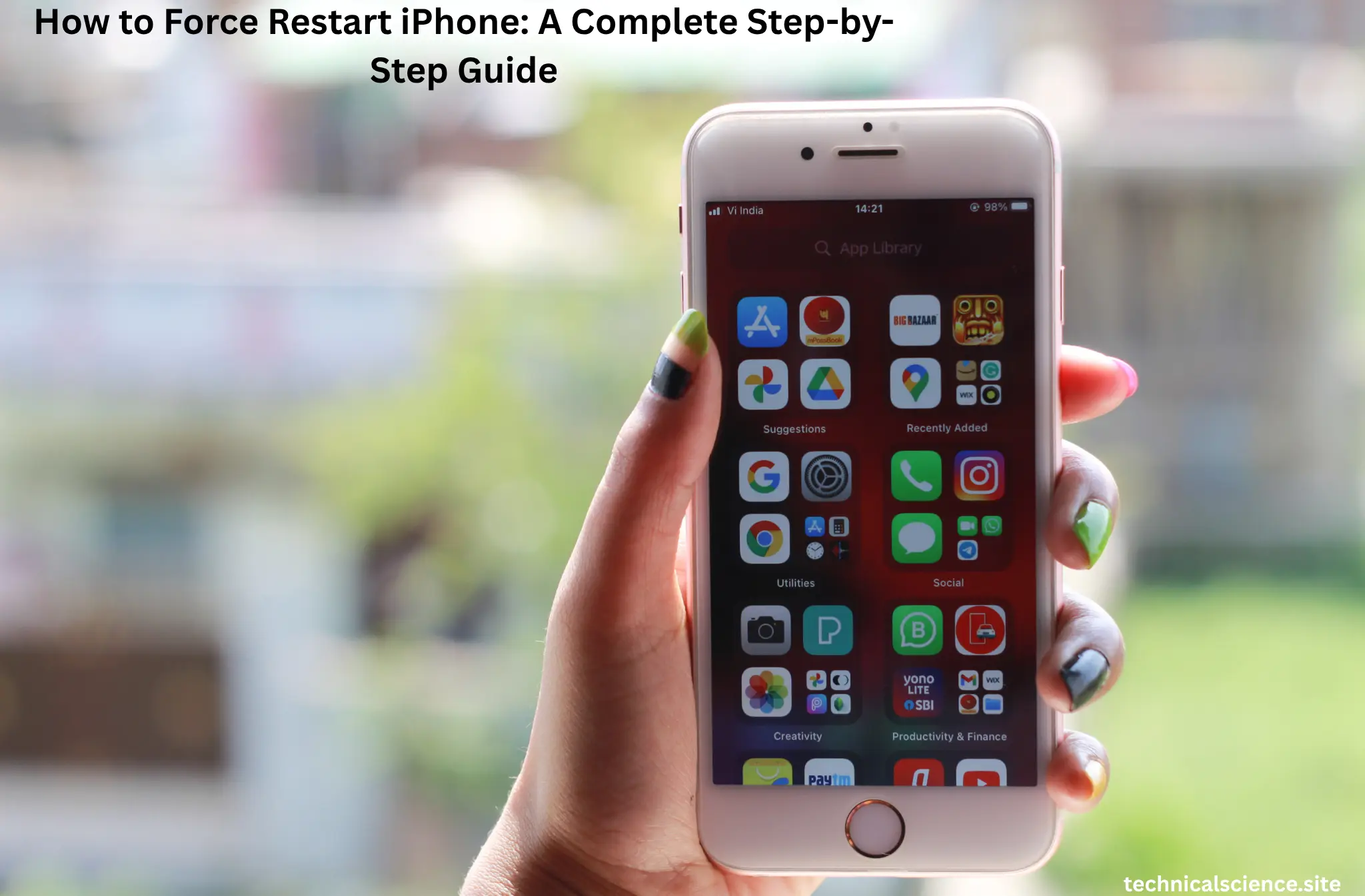
When your iPhone is stuck, crashes, or unresponsive, take a deep breath! It is easy to fix in just a few moments by using a simple force restart process on your iPhone. This will not delete your information; it just updates your system. We will learn how to safely and efficiently restart any iPhone model.
What Does “Force Restart iPhone” Mean?
One of the most common actions when a force restarts an iPhone is a fast and harmless method of rebooting the phone in case of unresponsiveness. A force restart is not a normal reboot, where one is presented with choices on the screen; however, it involves using buttons to cut and power up immediately.
It helps when your iPhone:
- Gets stuck on the Apple logo
- Freezes during an update
- Won’t turn on or off
- Loss of sensation.
This is one of the most straightforward solutions to most short-term iPhone issues.
How to Force Restart iPhone (All Models)?
Apple has altered the process of restarting various iPhone models. The following are the steps to use to restart iPhone in case it has become unresponsive.
For iPhone 8, SE (2nd Gen), X, 11, 12, 13, 14, 15, and 16
- Press and release the Volume Up button fast.
- Press and release the Volume Down quickly.
- Press and hold the Side button until the Apple logo appears.
- And that is it, after several seconds, your iPhone will automatically restart.
For iPhone 7 and iPhone 7 Plus
- Volume Down and Power (Sleep/Wake): Press and hold the two keys simultaneously.
- Continue holding the two buttons until the Apple logo appears, and then release.
In the case of iPhone 6s, SE (1st Gen), or other Earlier models.
- Hold down the Home button, as well as the Top (or Side) button at the same time.
- When you see the Apple logo, release the two buttons.
This process is compatible with any iPhone model and provides a secure means of resolving issues such as freezing or crashes.
When Should You Force-Restart an iPhone?
Most days, you’ll never think about this trick. But when your iPhone just freezes up and won’t do anything, it’s honestly a game-changer. So, when do you actually need to force restart? If your screen locks up and won’t respond, if apps keep crashing or won’t close, or if your phone turns on but just sits there staring back at a black screen, those are the times. Sometimes, after a software update, your phone becomes stuck for no apparent reason. In those moments, a quick force restart can bring it right back, and you keep all your stuff.
Will Force Restart Delete My Data?
No, force restarting your iPhone doesn’t wipe your photos, apps, or settings. It simply refreshes the system memory, nothing more. However, keep in mind that it won’t solve larger software problems or hardware issues. It won’t eliminate malware, and it certainly doesn’t reset your phone to its factory settings. Really, it’s just a basic troubleshooting move. Picture it like letting your phone take a short nap so it can shake off those little glitches.
Tips to Avoid Frequent Freezes and Restarts
If you’re having to force restart your iPhone often, your device may require some attention. Follow these tips to keep it running smoothly:
- Keep iOS updated: Apple frequently releases bug fixes and updates.
- Avoid whole storage: Low space can slow down your iPhone.
- Close unused apps: Having too many open apps can cause freezing.
- Restart regularly: A normal restart every few days keeps your phone fresh.
- Check for faulty apps: Delete apps that crash repeatedly.
These small habits can help you avoid constant issues and extend the life of your iPhone’s performance.
Conclusion
Knowing how to force restart an iPhone can save you time and stress when your phone freezes or stops working. It’s quick, safe, and works on every model from iPhone 6s to iPhone 16. With just a few button presses, your iPhone will be up and running smoothly again.
FAQs
Yes, it’s safe, but not necessary on a daily basis. Use it only when your iPhone becomes unresponsive or stuck.
A normal restart utilizes the screen’s power options, whereas a force restart employs physical buttons to reboot the device when it is frozen.
Try charging it for at least 15 minutes, then perform another force restart. If it still won’t start, contact Apple Support.
Read Also: