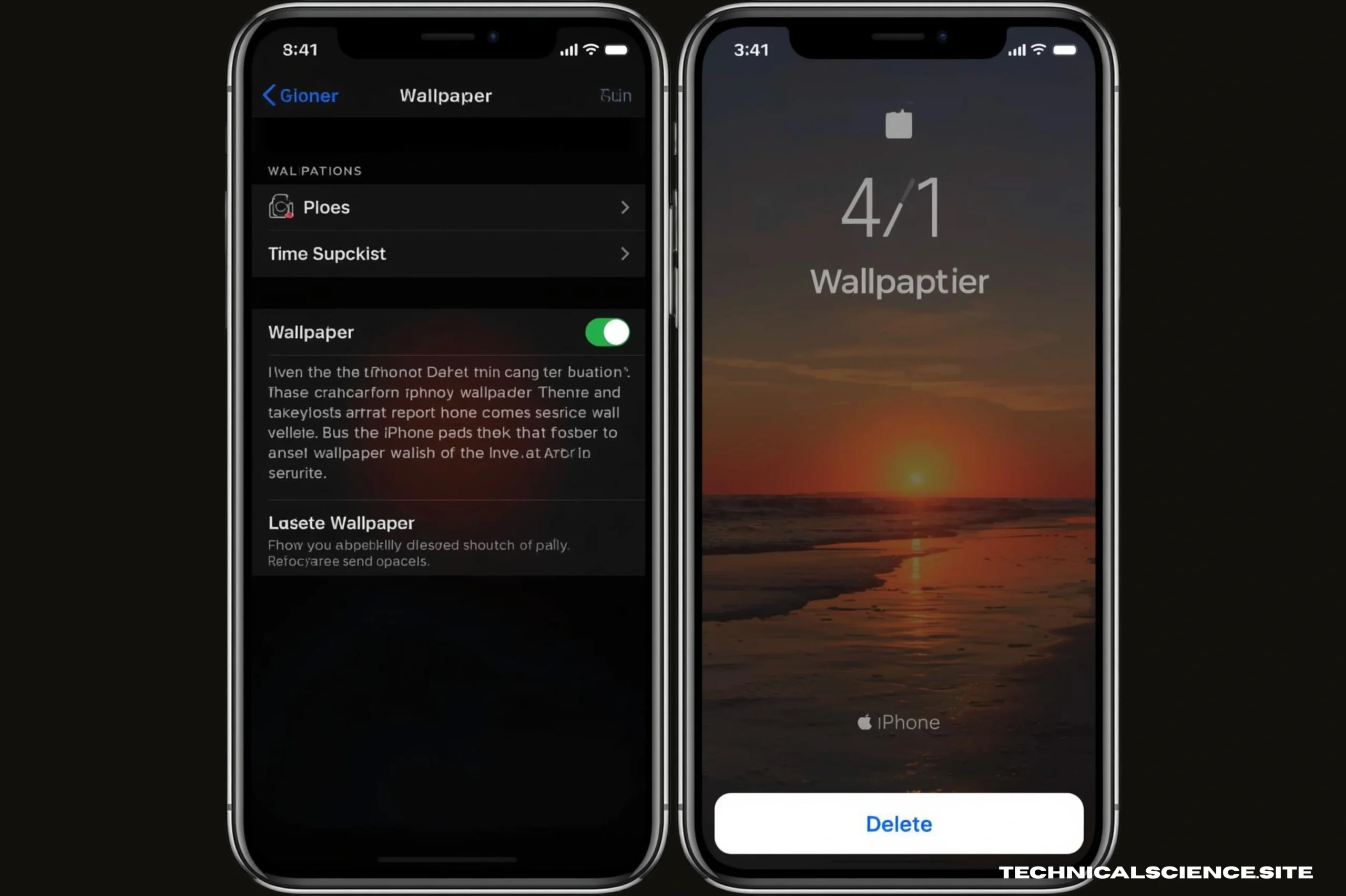
Many people are hesitant to delete backups, either because they don’t know what they might lose or simply don’t know where they can be found. An iPhone backup is a copy of all your device’s data that you store on iCloud, or your computer. This article will describe what iPhone backups actually are, how they function, and give a step-by-step method to delete older backups safely in 2026.
What is an iPhone Backup?
A backup of your iPhone is a copy of the data on your device, including messages, app data, settings and photos. It’s a snapshot at a particular point in time. Apple users can create backups through iCloud, Apple’s cloud-based storage service. They can also do it locally using iTunes or Finder for Mac or Windows.
Apple uses backups every time you upgrade your iOS version, restore an old device or set up a brand new iPhone. Over time, old backups of previous iPhones and older data accumulates. This takes up valuable storage space. The size of a single iPhone backup will vary from a few hundred Megabytes up to several Gigabytes, depending on the amount of data in your phone.
How iPhone Backups Work (iCloud, iTunes, and Finder)?
Three different systems are used to create and manage iPhone backups. Before you delete anything, it is important to understand each system.
1. iCloud Backup
Apple’s cloud-based automatic backup system is iCloud Backup. Apple servers automatically backup your iPhone when it is plugged in and connected to WiFi. Apple only gives users 5 GB free iCloud space. This limited storage space is consumed by old backups of previous iPhones and earlier dates. Manage iCloud Backups from the iPhone Settings or iCloud.com in any browser.
2. iTunes Backup (Windows)
An iTunes backup saves a copy of all your iPhone data to your Windows computer. When you sync your iPhone with iTunes on your PC, a local backup file is created. These backup files will be stored in a folder that is hidden on your computer. Multiple backups from different iPhones and dates can accumulate on your computer, consuming gigabytes without you realizing.
3. Finder Backup for Mac
Apple has replaced iTunes for iPhone backup management on Mac computers running macOS Catalina or later. The files you create when you backup your iPhone using Finder are stored on the hard drive of your Mac. Finder backups are similar to iTunes backups in Windows. They accumulate over time, and need to be deleted manually to reclaim space.
Types of iPhone Backups You Can Delete
Old Device Backups: Previous iPhones
If you upgrade to a brand new iPhone, the backup of your old device will remain in iCloud and on your computer. The old backup device is no longer useful once you’ve confirmed that your new iPhone has been set up correctly. They are the most safe backups to remove because they are from a device that you no longer own. It is easy to free up storage by deleting old backups.
Back-ups with Date-Stamped Backups
Backups made with iTunes or Finder are marked with a time and date. Only the latest backup of an iPhone is relevant if you have several copies from different dates. You can safely remove all older backups that are date-stamped. Keep only the most recent backup to ensure you can restore your device if anything goes wrong.
Encrypted backups with unknown password
Some users create encrypted iTunes or Finder Backups, but forget the password. These backup files are password protected and take up space on your computer. However, they cannot be accessed unless you know the password. These old, password-protected backups that are locked can be safely deleted to free up space on your computer if you do not remember the password or have a more recent backup.
Pros of Deleting Old iPhone Backups
1. Save valuable iCloud and computer storage
The immediate benefit to deleting old iPhone backups is that you can recover significant storage space. iCloud offers 5 GB of free storage, but a full iPhone backup may consume up to 6 GB. The International Monetary Fund’s report on digital infrastructure states that the scarcity of storage in consumer technology has a direct impact on user productivity and device performance. If your iCloud storage is full, your iPhone will stop backing up automatically. This means that your data could be permanently lost if you lose or damage your device. By removing older backups, you can free up more space and ensure that the most relevant data is protected without having to pay for an iCloud upgrade.
2. Upgrade iPhone and computer performance
Using iTunes or Finder to store old backup files on your computer can take up dozens of gigabytes. World Bank research on digital systems management shows that excessive storage consumption can reduce system performance and processing speed. Old iPhone backup files can be a hidden culprit for the ‘storage is full’ warning on Mac computers that have limited SSD storage. By deleting these files, you can free up storage for your operating system, increase Mac performance, speed up Time Machine backups and avoid storage-related delays that impact your daily workflow.
3. Enhance Security and Privacy
The old iPhone backups include all of your personal information at a certain point in time, including contacts, messages, app data and photos as well as login credentials. The Financial Action Task Force published guidelines emphasising the fact that unnecessary storage of personal data on digital storage systems increases the risk of unauthorised access and privacy breaches. In the event that your iCloud account or computer is compromised or lost, your old backup files can be used by bad actors as an extra attack surface. This risk can be eliminated by deleting backups on devices that you are no longer using. It also follows the best practices of personal data hygiene for 2026.
Cons of Deleting Old iPhone Backups
1. Risk of permanent data loss
The biggest danger in deleting iPhone backups comes from accidentally removing data which cannot be recovered. Apple will not keep a backup of an iCloud back up once it is deleted. Once a local iTunes backup or Finder back up is deleted, it’s gone forever. National Institutes of Health research on digital data management shows that human error is the most common cause of accidental data loss. You cannot restore information if you delete an important backup or delete it before you confirm that your new device contains all of your data. Verify that your device is complete and ready to use before deleting any backup.
2. There is no recovery option after deletion
Unlike deleting files or photos, which are moved to the Trash or Recently Deleted Folder, deleted iCloud Backups are permanently removed without any recovery window. In digital risk assessments, the International Monetary Fund noted that irreversible data-delete processes on consumer systems are associated with increased risk when users do not have sufficient technical knowledge. Apple does not offer a 30-day period of recovery, a recycle bin or restoring backed-up data. A single mistake in the Settings app could permanently delete months of data. Users should only delete backups if they are certain that the data has been safely stored somewhere else or is no longer required.
3. Workflows Restored after Disruption
If you are a user who restores or sets up iPhones regularly, such as an IT professional managing multiple devices or a family sharing iCloud account, deleting older backups may disrupt your existing workflows. According to research on cybersecurity and device management cited by National Institutes of Health (NIH), organizations and power users that manage multiple Apple devices use historical backups for troubleshooting issues with software or reverting data. By deleting these checkpoints, the ability to rollback to a previous state of a device is lost. Users should ensure that they have a backup of all active devices and that any ongoing setup or restore processes do not depend on the files removed.
Conclusion
One of the easiest and most efficient methods of reclaiming iCloud storage and computer storage is by deleting ancient iPhone backups. It doesn’t matter whether it is clearing out the constrained 5 GB of iCloud or clearing out the gigabytes of your Mac SSD or enhancing your own digital privacy by deleting old data snapshots, the advantages are obvious and direct.
The process however has actual dangers involved. Backups deleted could not be recovered any more. Even sources such as IMF, World bank, FATF and NIH all state that data management decision must be taken with cautiousness and ensuring the current data is secure.
The clever thing is to ensure that you have a full iPhone and retain the latest backup and delete all the rest with ease. Convenience is not the only thing of clean storage. It is to maintain your device safe, quick and ever safe.
Frequently Asked Questions (FAQ)
Is removing an old iPhone backup going to erase the photos on my phone?
No, The act of deleting an iPhone backup will only delete the backup file that is on your computer or in iCloud. It does not erase any photos, messages, and data on your iPhone now. Your machine is as unaffected as ever.
How much space will I recover by compromising old backups?
It relies on the volume of your backups though the majority of iPhone backups are within the range of 1GB to 8GB. Any one or two of the pre-existing iPhone backups can be deleted and result in a freeing of several gigabytes of iCloud storage or computer hard disk space.
Is it possible to restore an iCloud backup?
No. An iCloud backup after deleted can no longer be recovered as it will be completely disposed. Apple does not store any deleted backups. This is the reason why you should be totally sure before doing the deletion of any backup.
Should I clean up old iPhone backups on a regular basis?
One of the best practices is to check on your backups after every six months or when you acquire a new iPhone. Once you are sure that your new device is completely configured, wipe the previous device backup clean and tidy up the storage.