Slow motion videos are so beautiful when you need to emphasize some special moments such as splashes of water, sporting activity or funny reactions. The iPhone camera enables one to take slow-motion videos with a single tap. Nevertheless, a lot of users realize later that they want to delete or change the effect of a slow-motion. It is then that they are in search of how to revert to normal speed video iPhone settings in the right way.
Should you have made an accidental video in Slo-Mo mode or changed your mind, then there is nothing to worry about. It does not require any third party application to correct. The editing features that are inbuilt within your iPhone enable you to edit or entirely delete the slow-motion effect in seconds. This guide will teach you easy and step-by-step ways to edit, adjust, and entirely reverse slow motion video, in a very easy and professional manner. Let’s get started.
What Are Slow Motion Videos on the iPhone?
It is possible to record slow motion video on an iphone with the help of Slo-Mo mode of the Camera application. This is a feature that allows video to be recorded at a higher frame rate e.g. 120fps or 240fps and then it is played at a lower frame rate to create a dramatic effect. The outcome is a professional moving slow-motion film.
When you open the Camera app and swipe to shoot in Slo-Mo mode, your iPhone will record video in a different manner than it would have been recorded in normal mode. There is an increased amount of frames per second on the device, thus it is possible to slow down certain sections on the video without any loss of clarity.
The fact that the iPhone picks out a clip section to give the slow-motion effect is even better. Nevertheless, one can change this choice. The slow effect can be easily adjusted or removed in case you are not pleased with it. How to undo slow motion video iPhone is being sought by many users since they believe the effect is permanent but it can be edited.
Learning about the way Slo-Mo is used will make you better control your videos and not become frustrated in vain in future.
How to Slow Down Video iPhone (Step-by-Step Guide)?
To remove the effect of slow-motion entirely, then do the following steps in a simple way:
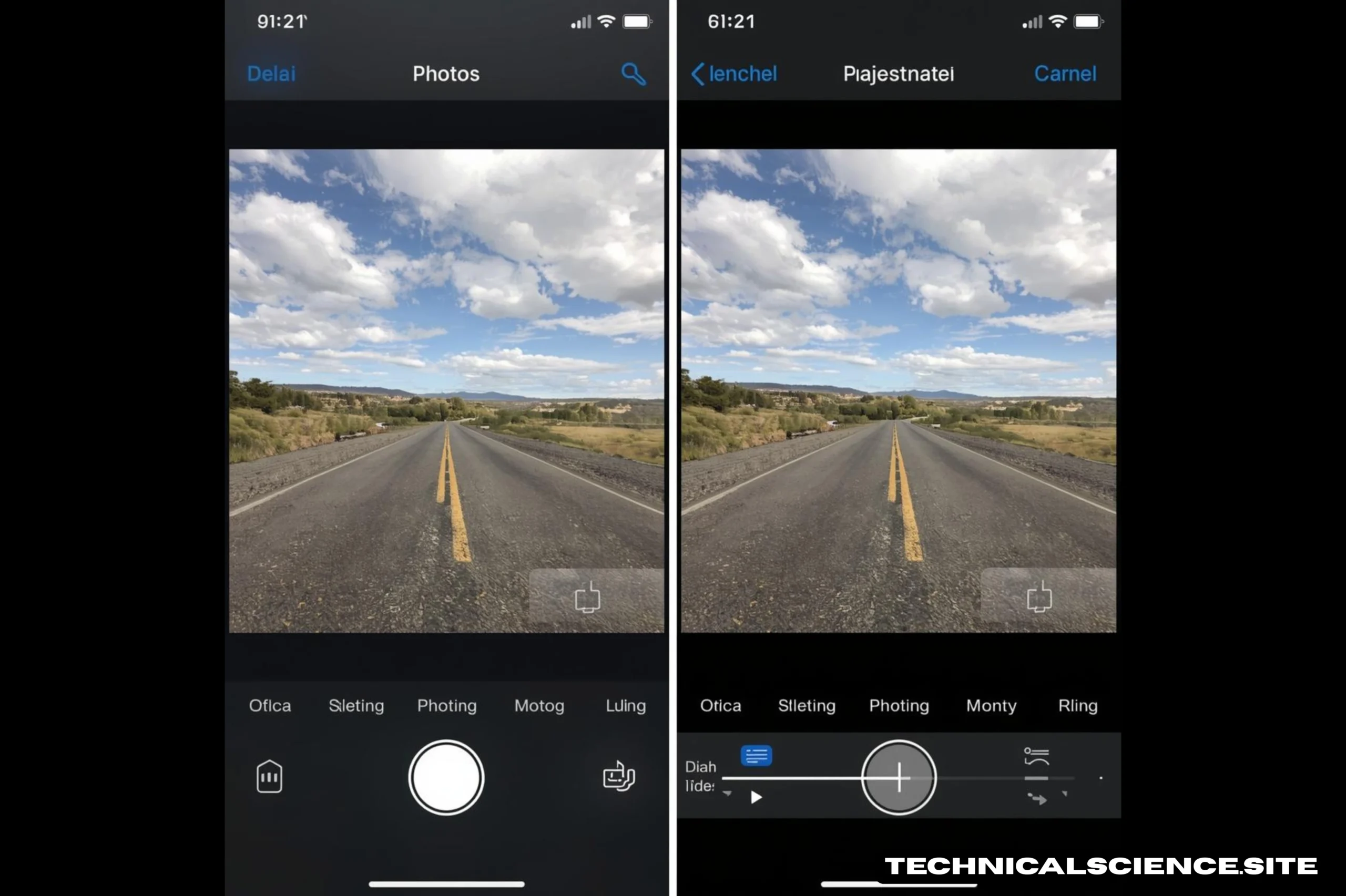
- Open the Apple Photos app.
- Choose the slow-motion video which you would like to edit.
- Click the top right corner on the Edit button.
- Below these are the vertical lines under the timeline which are the slow-motion bit.
- Keep moving the two sliders until all the lines are united.
- Tap “Done.”
That’s it. Your video is now going to run at regular speed.
It is the simplest way for a user trying to find out how to reverse a slow motion video iphone without having to download additional applications. Slow motion videos are not locked permanently in the iPhone. Rather it allows you to have complete control to either change or delete the effect at any time.
In case you change your mind again, you may re-edit the video since the iPhone retains original video file data which is stored safely.
Modifying rather than Eliminating Slack
There are other times when you do not want to get rid of the effect entirely you simply wish that you abbreviated it or shifted it elsewhere. Then, the best alternative is editing.
Tap the photo in the Photos app and tap Edit. The timeline is located at the bottom. The slower part is marked by the space that exists between the lines. You are able to move the sliders to move the slow motion point.
As an example, you can apply slow motion only to one second of your video and it will look good. This makes your clip look more professional and filming.
A number of individuals who seek information on how to reverse or undo slow motion video iPhone, do not even have to erase it but simply reverse it to play at a faster pace. Your video can be personalized to the manner of your desire with easy slider edits.
Rather than cutting a slow motion, one can make it longer and add more depth to the storytelling, emphasize the important moments, and make your content appear more professional on social media.
Can You Convert Slow Motion to Normal Video Permanently?
Yes, it is possible to make a permanent conversion of a slow-motion video to a regular video. Once the slow part is removed and the button Done has been tapped, the video will act like an ordinary clip.
To ensure that all the slow-motion data has been eliminated, you may as well share the edited video to one more application called iMovie and save it as a new file. This is a new format that lacks slow-motion metadata.
Such an approach is helpful in case you intend to post the video in a professional way or upload it to a person who is not supposed to re-edit it. The iPhone users tend to search how to reverse slow motion video iPhone due to fear that it cannot be reversed. The reality is that Apple provides options of flexibility in editing.
When it is exported as a normal video, it will cease to act like a Slo-Mo file, and will play at normal speed anywhere.
The Reason Your Slow Motion Video Doesn’t Look the same after editing
Even after editing, users can see slight differences in brightness or sharpness. This is because slow-motion videos are shot at an increased frame rate hence influencing lighting and exposure.
The video has retained its original high frame-rate structure even when you remove the slow effect. It just sounds like it is at regular speed. It is the reason to know how to reverse the slow motion video iPhone properly to handle expectations.
When the lighting appears a bit dark, it is possible to fix exposure, brightness, and contrast via the Edit tools within the Photos app. Its built-in controls enable you to improve the video quality without the third-party software.
Remember, there is no way of reversing a slow motion to make it less good; it only alters the speed at which it is played.
Advice on How to stop capturing unnecessary slow motion videos
You should not always have to search how to undo slow motion video iPhone to ensure you do not record a slow motion video.
Before capturing a video:
- Check the bottom of your screen and make sure that you are not in Slo-Mo mode.
- Touch the screen to change to Video mode to make regular recordings.
- Check frame rate settings in Camera settings.
The act of taking notes is time-saving in the editing process. In case of frequent mode switching, you can give yourself an additional second to make sure you have selected the mode.
Such minor practices save you the hassles of having to edit needlessly and record videos as you set out to.
Conclusion
Slow motion videos are also creative and dramatic to your content but occasionally you might need to take off the effect. The positive thing is that there is a very easy way to learn how to reverse slow motion video on an iPhone and one does not have to possess any technical expertise. After making a few taps on the Photos app, you may modify, diminish, or entirely delete the slow-motion effect.
With the knowledge of the editing software that you can use on your iPhone, you will be in full control of your videos and you can make content just how you desire.
FAQs
Is it possible to take slow motion out of an iPhone video?
Yes, it is easy to delete it in the Photos app with the help of the Edit option.
Will slow motion reversal decrease video quality?
No, it just adjusts the remaining playback rate. The quality remains the same.
Does one need an application to reverse slow motion?
No, the Photos that come with it suffice.
Is it too late to take away slow motion and restore it?
Yes, as long as you have not exported it as a new file, you can re-edit it.
Why is the slow motion video darker?
Higher frame rates are used in slow motion and may have a slight impact on lighting.