If you have been dealing with performance problems, frozen applications, or simply want a fresh start, learning how to factory reset an iPhone is a must. Factory resetting your iPhone will give you a clean slate, returning your device to its original configuration and deleting personal information, applications, and preferences. Before continuing, it is important to recognize the reasons why a factory reset may be required and how to perform the process without losing valuable information.
iPhones are designed to be user-friendly, but issues such as unresponsive screens, storage malfunctions, or software glitches may lead you to consider a factory reset. Moreover, some users have reported inconsistencies in their iPhone performance, such as the question of why Siri volume is so low on iPhone.
Why You Might Need a Factory Reset?
Here are some situations where a factory reset is advised:
- When you want to sell or give away your iPhone: This is the best way to ensure that your personal information is completely erased.
- When you experience software problems: If your apps are crashing or freezing, a factory reset can help solve the problem.
- When you forget your passcode or are locked out of your iPhone: A factory reset is the only solution in this situation.
- When you suspect malware or spyware on your iPhone: Although this is highly unlikely on an iPhone, a factory reset will ensure that any malware is completely removed.
Knowing these helps you prepare for the reset and not just do it as a solution to some temporary problems.
Preparing for a Factory Reset
Before you proceed with a factory reset, it is essential to back up your data. When you reset your iPhone, it will erase everything. So, taking a few minutes to prepare for the reset will save you a lot of trouble down the line.
Back Up Your iPhone

iCloud Backup:
- Make sure you are connected to Wi-Fi.
- Tap Settings > [Your Name] > iCloud > iCloud Backup.
iTunes/Finder Backup:
- Connect your iPhone to your computer.
- Open iTunes/Finder on your computer.
- Select your iPhone and click Back Up Now.
This step ensures that your photos, apps, and personal preferences are restored after the reset.
Remove iCloud and Find My iPhone
If you are giving away or selling your iPhone, it is essential to remove your iCloud account and turn off Find My iPhone:
- Go to Settings > [Your Name] > Find My and turn it off.
- Sign out of iCloud completely by going to Settings > [Your Name] > Sign Out.
This will ensure that the next user is not blocked from using the iPhone by Activation Lock.
How to Factory Reset iPhone (iOS 16 and Later)?
Apple has made the reset process much easier with the latest versions of iOS. Here’s how you can do it:
- Open the Settings app on your iPhone.
- Go to the General option.
- Scroll down to the Transfer or Reset iPhone option.
- Tap on Erase All Content and Settings.
- You may be asked to enter your passcode or Apple ID password. Do that.
After that, the iPhone will start the process of deleting all data. This process cannot be undone once it starts. Make sure that you have backed up all data before proceeding.
How to Factory Reset Without a Passcode?
If you forget your passcode, it doesn’t necessarily mean that your iPhone is lost. You can still reset it using a computer:
Method 1: Using iTunes/Finder
- Connect your iPhone to a computer.
- Put your iPhone into Recovery Mode: press and release Volume Up, then Volume Down, and hold the Side button until the recovery screen appears.
- Open Finder (Mac) or iTunes (PC) and select your iPhone.
- Click Restore iPhone and wait for the process to complete.
Method 2: Using iCloud
- Go to iCloud.com and sign in with your Apple ID.
- Select Find iPhone and choose your device.
- Click Erase iPhone.
Both methods will help you reset your iPhone even if you forgot the passcode, provided that you remember your Apple ID login credentials.
Additional Tips Before Resetting
Check Storage Issues: Sometimes, storage issues or app bugs can lead to issues that appear to be system-related. Before performing a reset, you could try optimizing storage by deleting apps, clearing app cache, or using iCloud storage.
Fix Minor Problems: A soft reset or hard reset (force restart) can solve many minor issues without deleting your data.
Soft Reset: Press the Volume and Side buttons, then slide to power off.
Hard Reset: Press Volume Up and Volume Down buttons briefly, then press and hold the Side button until the Apple logo appears.
Post-Reset Steps
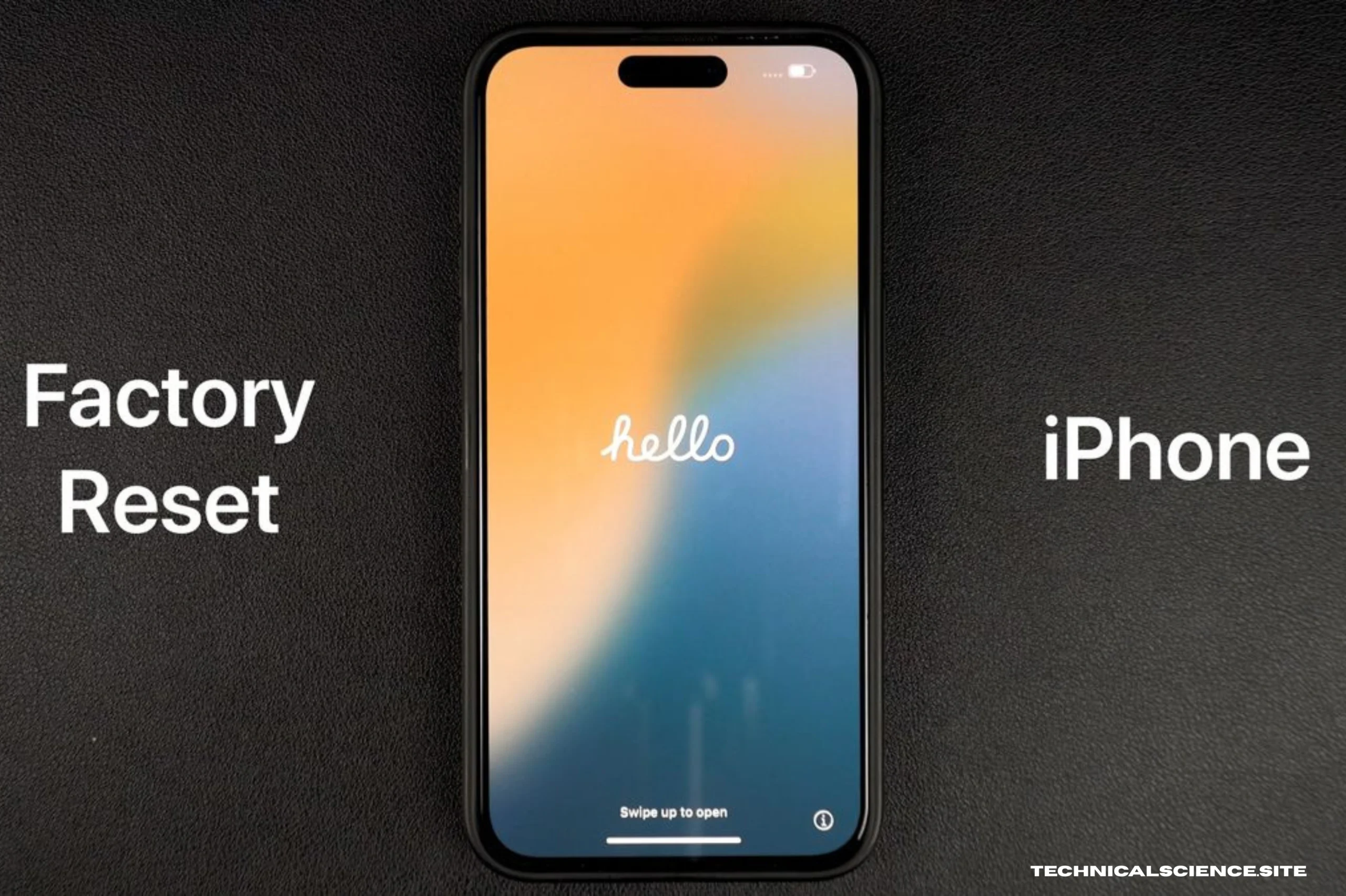
When your iPhone restarts after a factory reset, it will display the Hello screen. The following procedures will help you set up your iPhone properly:
- Choose a language and country or region.
- Connect to Wi-Fi.
- Sign in with your Apple ID or create a new one.
- Restore data from iCloud or iTunes backup if desired.
- Turn on features such as Siri, Screen Time, and Face/Touch ID.
By following these procedures, you will be able to ensure that your iPhone is working like new while preserving all your important data.
Common iPhone Problems That Factory Reset Can Fix
- Frequent app crashes or freezing.
- Siri speaking too softly or not responding audibly (why is Siri volume so low on iPhone).
- iPhone running slowly or experiencing lag.
- iPhone getting stuck during boot-up or unresponsive screens.
Although not all problems are hardware-related, factory reset is often the solution to software-related issues that may be causing these problems.
Why Backup and Security are Important?
Backing up your iPhone before a reset is more than just securing files; it is also important for securing your online identity. This is because iPhones contain private information such as passwords, banking applications, photos, and messages. Deactivating iCloud and turning off Find My iPhone ensures that your iPhone is not accessed by unauthorized persons while you are doing a reset. Connecting a VPN while backing up your iPhone on public Wi-Fi networks provides an additional safety measure against cyber attacks.
Conclusion
Learning how to factory reset your iPhone is a critical skill that every iPhone user should have. Whether you are troubleshooting, upgrading, or selling your iPhone, a reset will give your iPhone a new life by removing glitches, optimizing performance, and securing your data. It is always important to back up your iPhone and turn off iCloud/Find My iPhone before doing a reset.
With a reset, you will be able to enjoy a faster and cleaner iPhone and solve problems such as app freezing or low Siri volume. Performing regular maintenance tasks such as software updates and storage management can go a long way in preventing future resets.
FAQs
Q1: Will a factory reset remove my iOS version?
A: No, Your iPhone will keep its existing iOS version while removing your personal data, apps, and preferences.
Q2: Can I factory reset my iPhone without a computer?
A: Yes, Go to Settings > General > Transfer or Reset iPhone > Erase All Content and Settings.
Q3: How long does a factory reset take?
A: Typically 5-30 minutes, depending on the iPhone model and the amount of data.
Q4: Will a reset remove my Apple ID?
A: No, but you must log out of iCloud and turn off Find My iPhone before the reset.
Q5: How do I resolve Siri volume being low after a reset?
A: Change Siri volume while she is talking, check the Bluetooth audio routing, and make sure silent responses are turned off. This will solve problems such as why is Siri volume so low on iPhone.
Read More Articles: