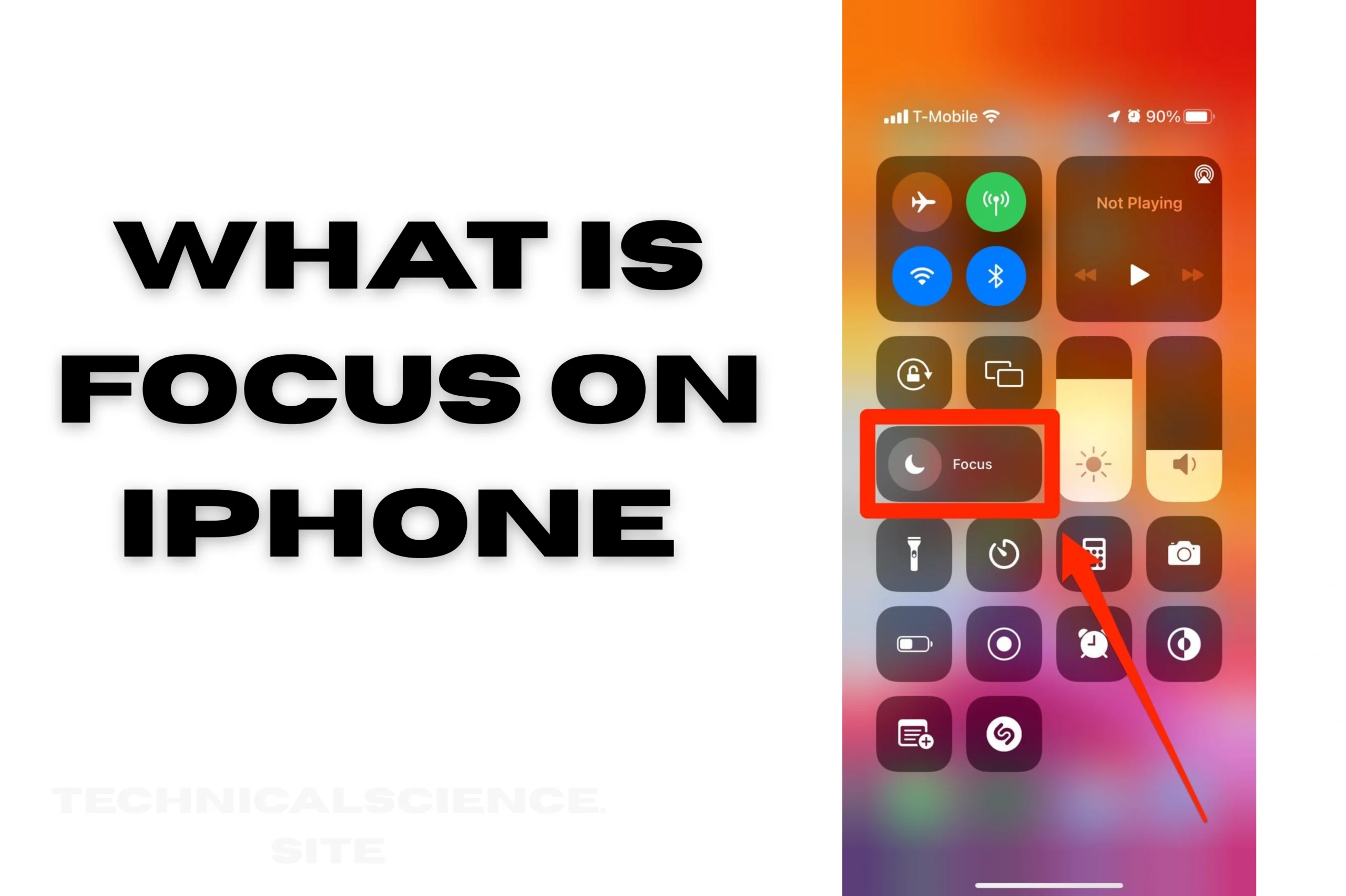
If you’ve ever asked yourself, “What is Focus on iPhone?” you’re definitely not alone. Focus, which was first introduced in iOS 26, is a feature that has the potential to help iPhone users manage notifications, reduce distractions, and create a digital space that fits their lifestyle. Unlike the previous “Do Not Disturb” mode, Focus provides a more personalized experience, with modes for work, personal time, sleep, driving, and more.
Focus is more than just turning off notifications; it’s about taking back control of your time and attention. Whether you want to stay productive during work hours, have uninterrupted family time, or practice healthy sleep habits, Focus puts the power in your hands.
How Focus on iPhone Works?
Essentially, Focus allows you to decide which apps and contacts you want to receive notifications from at a given time. Once enabled, Focus will temporarily prevent notifications, silence notifications, and minimize distractions. You can set Focus manually or schedule it according to time, location, and app usage.
For instance, when Work Focus is turned on, you can allow notifications from Slack, Microsoft Teams, or email but block social media notifications. Alternatively, Sleep Focus will mute all notifications except those from emergency contacts, ensuring you get a sound night’s sleep.
Focus also works in conjunction with other iOS features such as the Home Screen and Calendar. You can set the Home Screen to show only relevant apps depending on the Focus mode and even set it to turn on automatically when you open a particular app or arrive at a certain location.
What is Personal Focus on iPhone?
Personal Focus is another predefined Focus mode available on the iPhone. Although Work Focus is used to assist you in focusing on work, Personal Focus is meant to help you distinguish between your personal life and work or any other commitment you may have.
Personal Focus will turn off notifications for work-related apps such as email or Slack, but will allow notifications for messages and alerts from family, friends, and apps related to hobbies. You can also set your own rules for Personal Focus, such as allowing entertainment apps, fitness apps, or social media notifications, but will not allow work-related notifications to interrupt your personal time.
Personal Focus is the best mode to use when you need to recharge, engage in some leisure activity, or spend some quality time with your loved ones.
Other Focus Modes: Work, Sleep, and Driving
Apple offers a number of Focus modes that can be used to address general situations:
Work Focus: Helps you stay productive by allowing notifications from work-related apps and contacts while silencing notifications from social media, personal messages, or games. You can set it to turn on during office hours or when your calendar indicates a work meeting.
Sleep Focus: Helps you get better sleep by turning down the lock screen and turning off almost all notifications except those from emergency contacts. It integrates perfectly with the Health app and sleep analysis capabilities.
Driving Focus: Created to enhance road safety, it silences notifications when you are driving and allows automatic replies to messages. It can turn on automatically when your iPhone is connected to your car’s Bluetooth or when it detects motion that indicates you are driving.
How to Turn Focus On and Off on iPhone?
To turn Focus modes on and off, you can use one of the following methods:
Control Center: To turn Focus modes on and off, you need to swipe down from the top-right corner of the screen (or from the bottom on older iPhone models) and tap the Focus button. Then, select the Focus mode you want to turn on.
Settings App: To turn Focus modes on and off, you need to go to the Settings app, then select Focus. After that, choose the Focus mode you want to turn on or off.
Automation: To turn Focus modes on and off automatically, you need to go to the Settings app, then select Focus. After that, choose the Focus mode you want to turn on or off and set up automation rules.
In case you want to turn off a Focus mode quickly, you can do it from the Control Center or from the Settings app.
What is Focus Status and Share Focus Status on iPhone?
Focus Status is a function that lets others know that your notifications are turned off. By using this function, you can let others know that you are in Focus without them knowing which Focus you are in.
Share Focus Status is a function that enables your contacts to send you messages even when you are in Focus using the “Notify Anyway” option. This is particularly useful in case of an emergency.
You can turn Share Focus Status on or off in Settings → Focus → Focus Status. You can also set it up for each Focus, so that not all contacts can see your status.
Customizing Focus on iPhone
Apple provides you with the ability to customize Focus modes to a large extent. Some of the most important customizations include:
- Allowed Contacts: You can choose who can contact you when you are in a Focus mode, whether it is work-related contacts, family, or emergency contacts.
- App Notifications: You can choose which apps are allowed to send you notifications, such as only Slack notifications during Work Focus or music apps during Personal Focus.
- Home Screen Customization: You can show only those apps that are related to a particular Focus mode. For example, Work Focus allows you to display productivity apps while hiding social media apps.
- Sync Across Devices: This feature allows you to sync your Focus modes across all your Apple devices, whether you are using an iPhone, iPad, or Mac.
- Smart Activation: This feature allows you to turn on a Focus mode automatically based on your location, time, or app usage patterns.
Why Use Focus on iPhone?
Instead of just being a distraction-blocking app, Focus on iPhone is a productivity, mindfulness, and balance assistant. By controlling notifications and setting up each Focus session, you can:
- Increase productivity by minimizing unnecessary interruptions.
- Maintain a work-life balance by separating notifications for both.
- Improve sleep quality and minimize screen-related stress.
- Maximize communication by letting your contacts know that you are unavailable but can be reached in case of an emergency.
In summary, Focus helps turn your iPhone into a smart assistant that is in sync with your lifestyle.
Conclusion
Knowing what is Focus on iPhone is the key to living a more ordered and free of distraction lifestyle. Focus modes let you create your own virtual world whether you wish to stay productive at work, enjoy some personal time, or get a full night of uninterrupted sleep.
With options like Focus Status and Smart Activation, Apple ensures you stay connected just when it is most necessary; Personal Focus, Work Focus, Sleep Focus, and Driving Focus all have advantages of their own. A few minutes devoted to Focus setup and configuration can enable your iPhone to really help you effectively control priorities, time, and focus.
With Focus, your iPhone becomes a tool rather than only a phone enabling you to stay active, healthy, and engaged.
FAQs About Focus on iPhone
What is Focus on iPhone?
Focus on iPhone is a feature that limits notifications, calls, and alerts to help you stay productive or asleep. It comes with modes such as Work, Sleep, Personal, and Driving. Focus can be linked to other Apple devices and set to turn on based on time or location.
What is Personal Focus on iPhone?
Personal Focus is a feature that enables you to receive notifications from friends, family, and personal apps while turning off work notifications. You can set preferences for allowed contacts, apps, and Home Screen organization. It can be turned on and off manually or automatically.
How do I turn on and off Focus on iPhone?
To turn on or off Focus on iPhone, go to Control Center or Settings > Focus and choose a type. To turn on Focus, tap the Focus button; to turn off, toggle off. Smart Activation can automatically turn on Focus according to time, location, or app use.
What is Share Focus Status on iPhone?
Share Focus Status allows your contacts to know that you have silenced notifications without knowing which Focus mode you are using. This avoids confusion about your focus status. It can be turned on or off for each Focus mode in the Settings.
Can Focus on iPhone block calls and notifications from apps?
Yes, Focus blocks unwanted calls and notifications from apps while allowing some contacts or apps. You can also allow time-sensitive notifications or emergency contacts.
Read Also: