Your phones may start slowing down, your apps may begin acting strangely, and before you know it, your storage is full even though you haven’t added anything new. This is when people usually ask, “How do I clear cache on my iPhone? Will it help?”
Some people claim that clearing cache solves all problems, while others claim that iPhones automatically clear cache. The reality lies somewhere in between. Clearing cache can be a huge help—but only if you do it correctly.
Before we dive into the process, it’s helpful to know what cache is and how iPhones are different from other devices when it comes to cache.
How to Clear Cache on iPhone and Why It Matters?
When people refer to clearing cache on an iPhone, they are referring to the removal of temporary data that applications and browsers store. This data enables faster loading of images, website files, and application settings. It seems like a good thing, right? And it is… until it gets out of hand.
It’s like this: One person complains that Safari is slow, and another person says, “That’s probably because of cached website data.” Eventually, all of this cached data adds up and creates issues such as slow browsing, app crashes, and storage warnings.
Unlike Android phones, there isn’t a “clear cache” button on an iPhone. Apple handles things a little differently, but that doesn’t mean that you can’t clear cache—it’s just done in a couple of different ways depending on the problem.
This is why people search for things like “clear Safari cache on iPhone,” “clear app cache on iPhone,” or “free up iPhone storage.” They all essentially mean the same thing: getting rid of unnecessary cache data so that your phone can run smoothly again.
Once you realize what cache is and why it is important, the process of clearing it no longer seems confusing. And yes, clearing cache can indeed speed up your phone without deleting anything important.
Easy Ways to Clear Cache on iPhone Without the Headache
Now it’s time for the hands-on part. You might be wondering, “How do I get rid of the cache?” The best part is that it’s much simpler than you think. There isn’t a special button to click, but there are a couple of ways to delete the cache, depending on where it is.
Deleting Safari Cache and Website Data
If Safari is acting up and is taking a long time to load websites, this is probably the first place you should check. Safari has a cache of website files and images that it stores to make loading websites faster, but this cache builds up over time.
Here’s how to do it:
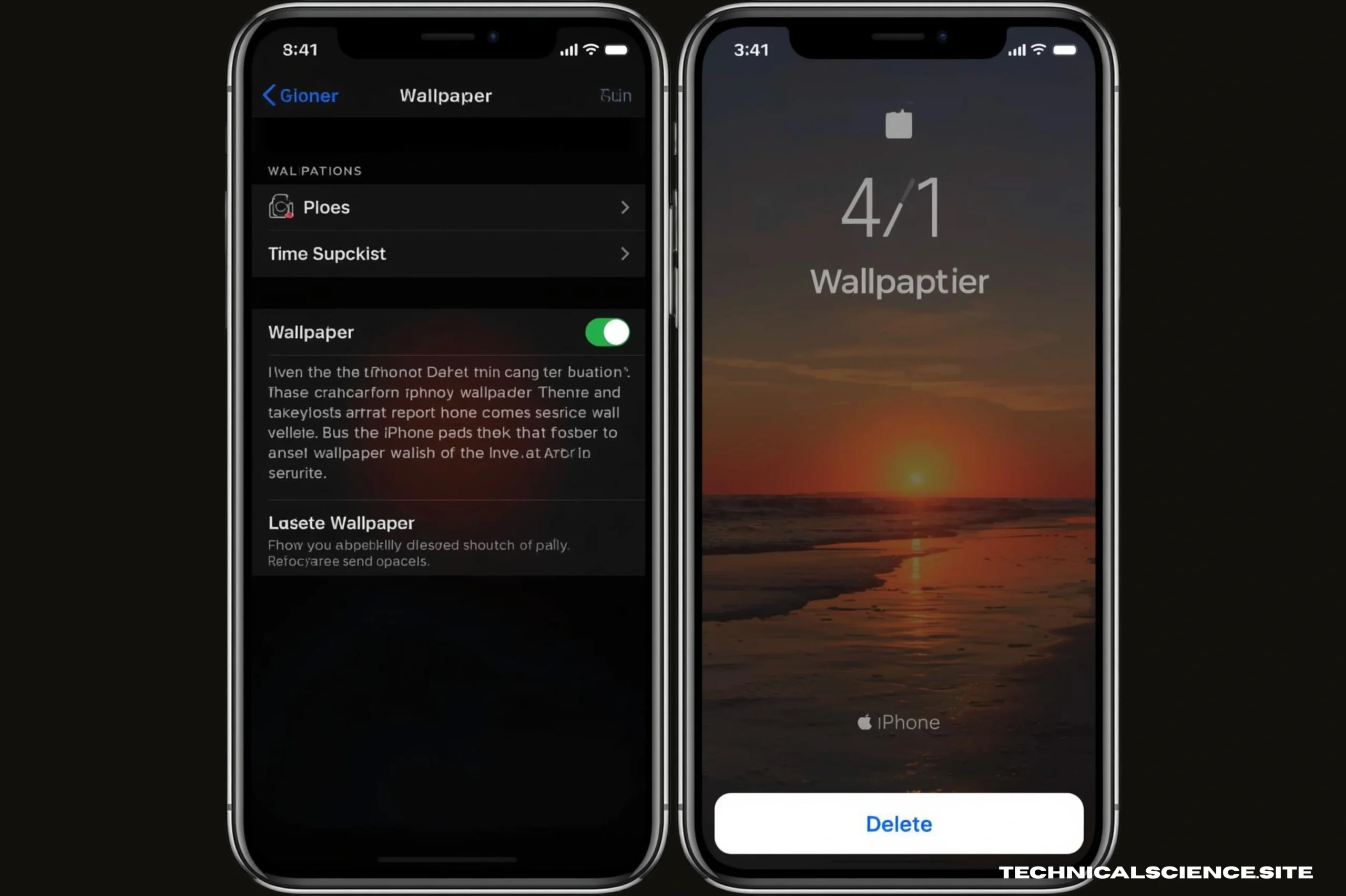
- Open Settings.
- Scroll down and tap Safari.
- Tap Clear History and Website Data.
This one step will delete cached website files, cookies, and browsing history—but don’t worry, your saved passwords and bookmarks are safe.
This one step alone will fix problems such as laggy scrolling, slow page loads, and even free up some iPhone storage space quietly in the background for most users.
Removing App Cache Without Losing Everything
Apps are slightly more complex than browsers. iOS does not have a “clear cache” option, but there are a few ways to do it effectively. Social media, video streaming, or shopping apps can easily accumulate cache on your phone, slowing it down.
If your iPhone slows down, apps act weirdly, or storage is full even though you have not added anything new, it is only natural to wonder: “How to clear cache on iPhone? Does it work?” Some people say it fixes everything right away, while others think that iPhones automatically clean cache. The truth is somewhere in between. If done correctly, clearing cache can be a game-changer.
Before proceeding with the steps, it is useful to understand what cache is and how iPhones clean cache differently than other phones.
What Cache Is and Why It Matters?
Cache is simply temporary data stored by apps and browsers. It helps load things faster, such as images, website files, and app preferences. Handy, right? And it is… until it gets too full.
Here’s how you can break it down: “Safari is slow,” says one individual. Then comes another, “That’s probably cached website data.” Over time, these files build up and can cause slow performance, app crashes, or storage warnings.
Unlike Android smartphones, there isn’t a “clear cache” button on iPhones. Apple controls cache, but that doesn’t mean it can’t be cleared. It all depends on what is causing the issue: Safari, other browsers, or individual apps.
This is why individuals search for things such as “how to clear Safari cache on iPhone,” “how to clear app cache on iPhone,” or “how to free up storage on iPhone.” It’s all the same thing: clearing out unwanted temporary files to get your iPhone running smoothly.
Now that you know what cache does and why it is important, you should find it easy to delete, rather than confusing. And yes, it can help improve performance without deleting anything important.
Easy Ways to Clear Cache on iPhone Without the Hassle
Now, let’s get down to business. You might be wondering, “How do I actually clear cache?” There isn’t a button to click, but there are easy ways to deal with it depending on where the cache is lurking.
Clear Safari Cache and Website Data
If Safari is running slowly or taking a long time to load pages, follow these steps. Safari stores website data, images, and browsing history to make browsing faster—but sometimes, it gets too much.
To clear it:
- Go to Settings → Safari.
- Tap Clear History and Website Data.
This will remove the cached files of websites, cookies, and browsing history, but not your saved passwords and bookmarks, which are safe. For most users, this should solve the problem of slow scrolling and loading, while at the same time freeing up storage space on the iPhone.
Clear App Cache Without Deleting Anything Important
Apps are a bit more complex because there is no cache button on the iOS operating system. Social media, streaming, and shopping apps are the ones that tend to accumulate a lot of cache.
This is how you can delete cache without deleting important data:
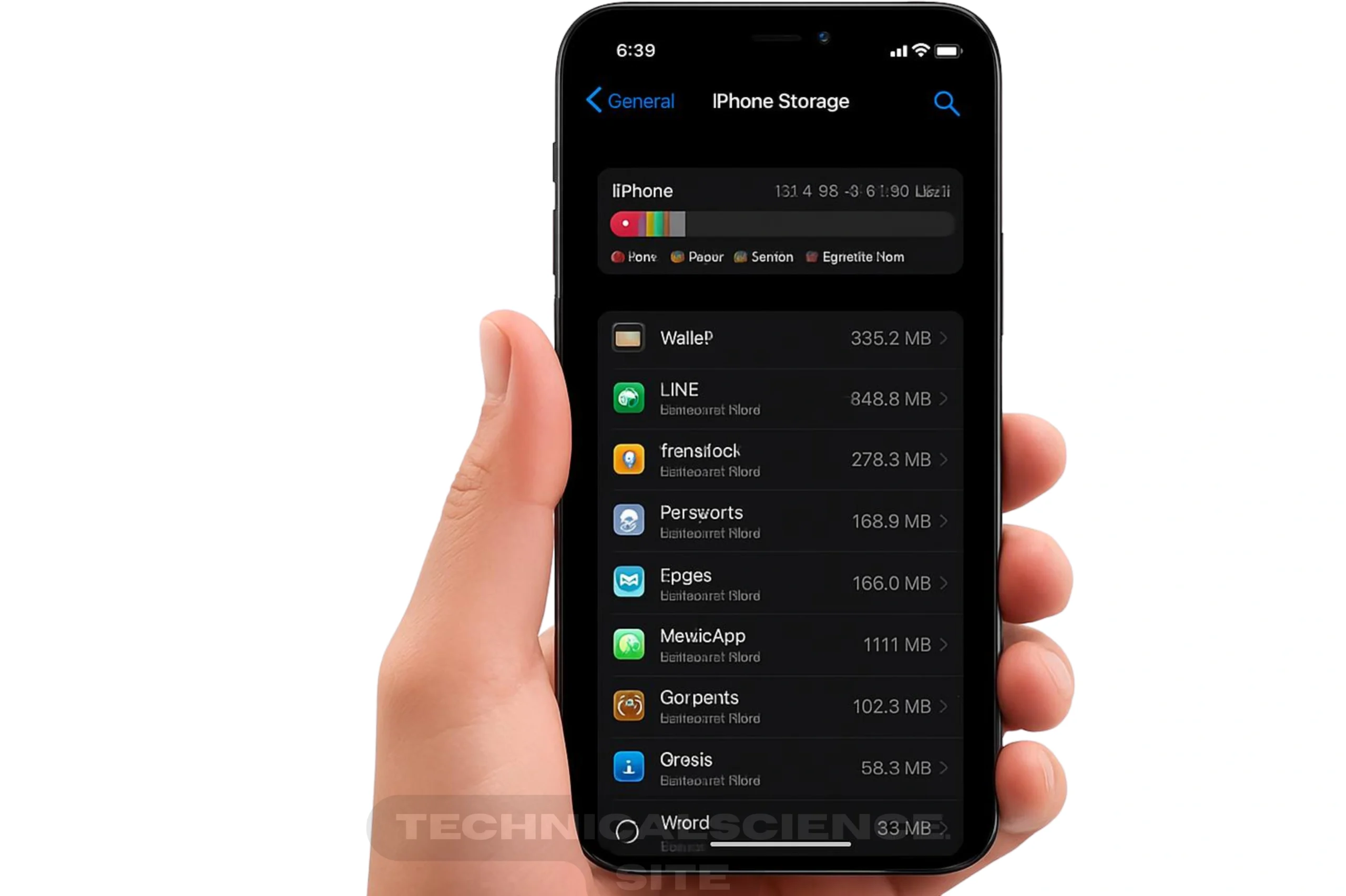
- Go to Settings > General > iPhone Storage.
- Find any app that is taking up too much space.
- If it is an option, tap Offload App.
Offloading an app will remove it, but your data will be safe. Reinstalling the app will remove the cache but will save all important data. Some apps also have the option to delete cache in their settings menu.
Restart Your iPhone for a Quick Cleanup
It may sound too simple, but restarting your phone will help clean the temporary system cache. This is why your iPhone may feel faster after a restart.
Turning off your iPhone and then turning it back on will help refresh background processes and clean temporary cached files. It won’t clean everything, but it will help with minor issues, overheating, and slowing down.
Conclusion
Cache is basically baggage. It starts out as a helpful thing but eventually becomes a problem. One person figures out that Safari is slow, another that apps are taking longer to open, and they are all having the same issue.
Knowing how to clear cache on an iPhone makes it easy to take care of your phone with no risk involved, just tiny clean-ups to make sure that your iPhone is running at its best.
Frequently Asked Questions
Will clearing cache remove anything important?
No, it will not. Cache is temporary data only. Photos, chats, contacts, and saved files remain exactly where they are. This is why clearing cache is safe.
Why does storage get filled up even when nothing new is installed?
Apps and browsers keep storing small files in the background. Over time, these files get stored and fill up storage space silently. This is usually cached data doing its job.
Is restarting the iPhone really helpful?
Surprisingly, yes, Restarting the iPhone clears the short-term system cache and background tasks. It doesn’t clean everything, but it usually resolves minor problems related to speed and glitches.
Do apps really need to be reinstalled to clear cache?
Sometimes, yes. Since iOS doesn’t have a clear cache button for all apps, offloading or reinstalling is the easiest way to remove hidden cached files without losing any data.
Can clearing cache make the phone feel faster?
In most cases, yes. When unnecessary files are removed, apps open more smoothly and the system runs without as much strain. It’s not magic; it’s just basic cleaning that actually works.
Read Also: